
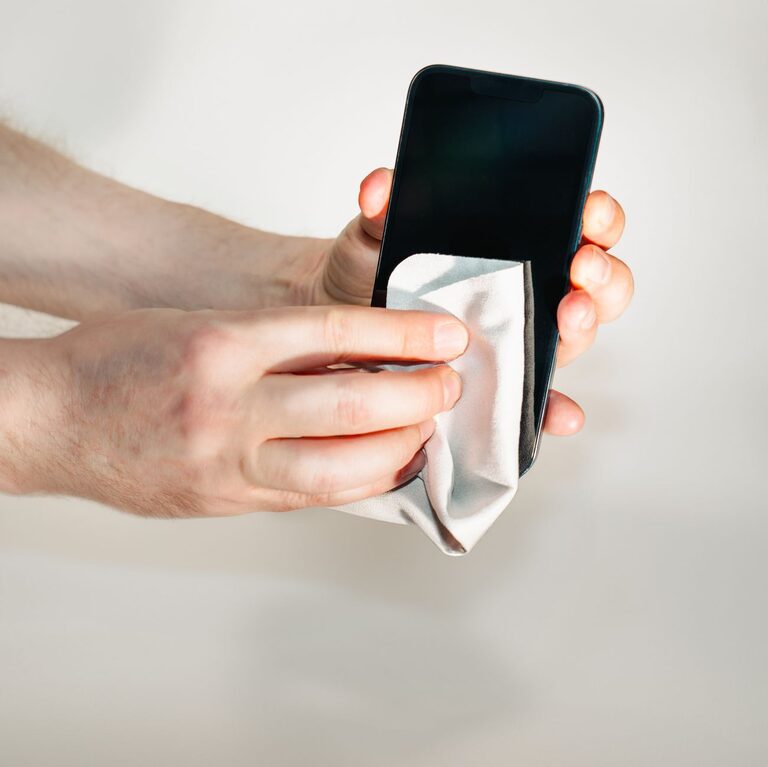
Your phone and keyboard collect dust, fingerprints, food crumbs, and everyday grime. Because both devices contain delicate electronic parts, cleaning them requires more care than wiping down a desk or countertop.
The safest approach is simple: turn devices off, use only a small amount of moisture, avoid harsh products, and never allow liquid to enter openings. With the right tools and a few careful steps, you can keep your devices looking clean without damaging the screen, keys, ports, or internal components.
Before You Start
Read the cleaning instructions from your phone, keyboard, or computer manufacturer before beginning. Some devices have special coatings or materials that can react badly to certain cleaners.
Gather these basic supplies:
– A clean, soft, lint-free microfiber cloth
– A second dry microfiber cloth
– Cotton swabs for small areas
– A small, soft brush
– Approved screen or electronics cleaner, if needed
– Compressed air for keyboards, used carefully
– A clean, dry work surface
Avoid paper towels, tissues, rough fabrics, abrasive powders, and household sprays. These can leave fibers behind, scratch surfaces, or damage protective coatings.
How to Clean Your Phone Safely
1. Turn Off the Phone
Power off your phone and disconnect it from its charger, headphones, or other accessories. Removing the case can make it easier to clean around the edges and buttons.
If the phone is warm, let it cool before cleaning. Do not clean a device that is actively charging.
2. Remove the Case and Accessories
Clean the phone case separately. Silicone, plastic, and rubber cases can usually be wiped with a lightly damp cloth and mild soap. Do not put the case back on until both the case and phone are completely dry.
For cases with fabric, leather, wood, or decorative finishes, follow the care instructions from the manufacturer. Some materials can stain or absorb moisture.
3. Wipe the Screen and Body
Use a dry microfiber cloth to remove dust and fingerprints. Wipe gently in one direction or with light circular movements. Avoid pressing hard, especially on the screen.
For stubborn marks, slightly dampen a corner of the cloth with water or a cleaner approved for your device. The cloth should be damp, not wet. Never spray liquid directly onto the phone.
Wipe the front, back, sides, and buttons carefully. Keep moisture away from seams and openings.
4. Clean Around Ports and Speakers
Dust can collect around the charging port, speakers, microphone holes, and SIM tray. Use a dry, soft brush to loosen visible dust around these areas.
Do not push cotton swabs, toothpicks, pins, or other objects into ports. They can damage small components or pack debris deeper inside. Never pour cleaner into a port or use a wet tool near an opening.
If a port is blocked or the phone is not charging correctly, stop cleaning and follow the manufacturer’s support instructions.
5. Allow the Phone to Dry
Give the phone a few minutes to air-dry before turning it on or reconnecting accessories. Make sure the charging port is fully dry.
Do not use a hair dryer, heater, or other high-heat source. Heat can harm the battery, screen, adhesives, and plastic parts.
How to Clean a Desktop Keyboard
Desktop keyboards are generally easier to clean because they can be disconnected from the computer.
1. Disconnect the Keyboard
Turn off the computer or disconnect the keyboard from its USB port. For a wireless keyboard, switch it off and remove the batteries if the design allows it.
Turn the keyboard upside down over a clean surface and gently shake it. This can remove loose crumbs and dust without requiring tools.
2. Remove Loose Dust
Use short bursts of compressed air to clear debris between the keys. Hold the keyboard at an angle and keep the can upright. Avoid spraying continuously, since liquid propellant can escape and condensation may form.
A small, soft brush can help loosen dust around the key edges. Work slowly rather than forcing debris farther into the keyboard.
3. Wipe the Keys and Surface
Lightly dampen a microfiber cloth with water or an electronics-safe cleaner. Wipe the tops of the keys, the palm area, and the outer edges.
Do not spray cleaner directly onto the keyboard. Excess liquid can run between the keys and reach the circuit board.
For narrow gaps, use a barely damp cotton swab. Replace it if it becomes dirty or wet, and avoid pressing moisture into the spaces between keys.
4. Clean Removable Keycaps Carefully
Some mechanical keyboards have removable keycaps. If your keyboard’s instructions allow removal, take a photo first so you can return each key to its proper position.
Remove the keycaps with a suitable keycap puller, then clean them with mild soapy water if recommended. Rinse them thoroughly and let them dry completely before reinstalling them.
Do not remove keys from a laptop keyboard unless the manufacturer specifically provides instructions. Laptop key mechanisms are often delicate and can break easily.
How to Clean a Laptop Keyboard
Laptop keyboards need extra caution because the keyboard, screen, battery, and main computer components are housed together.
Shut down the laptop completely and unplug it. Do not rely only on sleep mode. Open the screen to a comfortable angle, turn the laptop slightly upside down, and gently shake out loose debris.
Use a soft brush or short bursts of compressed air to remove dust. Keep the airflow light and avoid forcing particles under the keys.
Wipe the keys with a cloth that is only slightly damp. Keep liquid away from the trackpad, speakers, vents, and edges. Never spray a laptop directly, and do not use a dripping cloth.
Products and Methods to Avoid
Some cleaning methods can cause permanent damage. Avoid:
– Bleach, ammonia, and strong household cleaners
– Glass cleaner unless the manufacturer approves it
– Abrasive sponges and scouring pads
– Excessive water or spray
– Sharp tools used to remove dirt
– Heat guns, hair dryers, and heaters
– Submerging electronic devices
– Cleaning while a device is powered on or charging
Even products labeled as disinfecting or multipurpose may be unsuitable for screens, coatings, plastics, or key lettering. When in doubt, use a dry microfiber cloth and check the manufacturer’s guidance.
A Simple Cleaning Routine
Lightly wipe your phone every few days, especially after handling it during meals or outdoor activities. Clean the case regularly and check the charging port for visible dust.
For keyboards, remove loose debris weekly and wipe the surface every week or two, depending on use. A deeper cleaning can be done when keys feel sticky or dust becomes noticeable.
Clean hands, a tidy workspace, and keeping food and drinks away from electronics can reduce buildup between cleanings. With gentle tools and limited moisture, regular care can help your phone and keyboard stay comfortable, clean, and in good working condition.