
Losing photos and important files can happen in many ways. A phone may be lost, a computer drive may fail, or files may be deleted by mistake. A reliable backup system gives you a way to restore your files when something goes wrong.
The good news is that backing up does not have to be complicated. With a few storage options, a regular schedule, and occasional checks, you can protect your most valuable digital content.
What Is a Backup?
A backup is an extra copy of a file stored somewhere other than its original location. If the original file becomes unavailable, you can use the backup to restore it.
For example, if your photos are stored on your phone, a backup could be saved in cloud storage and on an external drive. These copies help protect your files from device damage, accidental deletion, and other common problems.
A backup is different from simply moving a file. If you move a photo from your computer to an external drive and delete the original, you may still have only one copy. A proper backup keeps the original and creates one or more additional copies.
Follow the 3 2 1 Backup Rule
A useful starting point is the 3-2-1 backup rule:
- 3 copies: Keep the original file plus two additional copies.
- 2 types of storage: Use two different storage methods, such as an external drive and cloud storage.
- 1 copy off-site: Keep at least one copy in a different physical location.
This approach reduces the chance that one event will affect every copy. For example, a backup drive stored beside your computer could be damaged at the same time as the computer. A cloud copy or a drive kept elsewhere provides another layer of protection.
You do not need to follow the rule perfectly on the first day. Start by creating one additional copy, then improve your system over time.
Choose the Right Backup Methods
Different storage options have different benefits. Many people use a combination of the following methods.
Cloud storage
Cloud storage saves your files on remote servers that you access through the internet. Many phones and computers include built-in cloud backup tools, while other services allow you to upload photos, videos, documents, and folders.
Cloud storage is convenient because it can run automatically. It also gives you access to your files from multiple devices. However, storage limits, subscription costs, and internet access may affect how well it fits your needs.
When choosing a cloud service, check:
- How much storage is included
- Whether automatic backup is available
- Which devices are supported
- How files can be restored
- Whether deleted files can be recovered
External hard drives and solid state drives
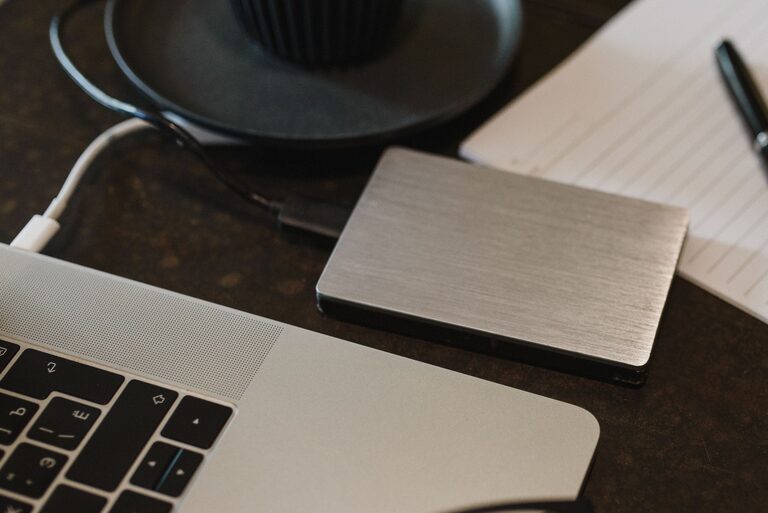
An external drive connects to your computer with a cable and can store large amounts of data. It is useful for photo libraries, videos, project folders, and full computer backups.
Hard disk drives are often available at a lower cost per unit of storage. Solid state drives are usually faster and have no moving parts, but they may cost more. Both can work well for backups when used and stored properly.
A backup drive should not stay connected all the time unless you need automatic backups. Disconnecting it after a backup can help protect it from accidental deletion, power problems, or certain types of malware.
Network storage
A network attached storage device, often called network storage, connects to your home network. It can provide a central place for computers and other devices to save files.
This option may be useful for families or people who work with large photo and video collections. It can require more setup than a cloud service or simple external drive, so read the instructions carefully and keep a second backup in another location.
Back Up Photos From Your Phone
Phones often contain years of photos, videos, and messages. Start by checking whether automatic photo backup is turned on.
Open your phone’s photo or cloud storage settings and confirm:
- That photo backup is enabled
- That the correct account is being used
- That recent photos appear in the online library
- That videos are included if you want them backed up
- That the device has enough storage space
Automatic backups may pause when the battery is low, the internet connection is limited, or the service has reached its storage limit. Review the backup status occasionally instead of assuming every file has been uploaded.
For an extra copy, connect your phone to a computer and transfer photos to a folder. You can then copy that folder to an external drive. Some phones also support direct transfers to compatible storage devices.
Back Up Files From Your Computer
Begin by identifying the folders that matter most. These may include:
- Documents
- Pictures
- Videos
- Desktop files
- Download folders containing important items
- Work, school, or creative projects
Remove duplicate or temporary files before starting if you need to save space. Be careful not to delete anything until you are sure it is no longer needed.
You can copy important folders manually to an external drive, or use your computer’s built-in backup tool. Automatic backup software is usually more convenient because it can run on a schedule and track changes.
Choose a schedule based on how often your files change:
- Daily: Best for frequently updated files and new photos.
- Weekly: Suitable for many personal computers.
- Monthly: Useful as an additional archive, not as your only backup.
If you use an external drive, label it clearly and store it in a safe, dry location. If possible, keep a second drive somewhere separate from your home.
Organize Files Before Backing Them Up
Good organization makes backups easier to manage and restore. Use clear folder names and a consistent structure.
For photos, you might create folders by year and event:
- Photos
- 2025
- 2025 06 Family Trip
- 2025 12 Holiday
For documents, group files by purpose, such as Home, Work, School, or Projects. Use descriptive file names instead of relying on names created automatically by a device.
Avoid storing your only copy in a difficult-to-find location. A simple folder system helps you confirm that important files have been included in each backup.
Protect Your Backup Accounts and Drives
Backups should be easy for you to access but difficult for others to misuse. Use a strong, unique password for each cloud storage account. Turn on two-step sign-in when it is available.
Keep your computer, phone, and backup applications updated. Updates can improve compatibility and help address security problems.
For external drives, consider whether the drive supports password protection or encryption. Store backup devices away from heat, moisture, and rough handling. Do not place them where they can be easily knocked over or damaged.
Test Your Backups Regularly
A backup is only useful if it can be restored. Every few months, open several files from your backup and confirm that they work. Check different file types, such as photos, videos, documents, and spreadsheets.
You can also practice restoring a small folder to a different location. This helps you understand the process before you need it.
During each review, check:
- When the last backup was completed
- Whether new files are included
- Whether the storage device has enough free space
- Whether cloud storage is still syncing
- Whether older files can be restored
Replace drives that show errors or behave unusually. A backup device should not be treated as permanent storage.
Create a Simple Backup Routine
A practical routine might look like this:
- Turn on automatic cloud backup for your phone photos.
- Copy important computer folders to an external drive each week.
- Keep a second copy in cloud storage or on another drive.
- Disconnect and safely store the external drive after the backup.
- Review and test your backups every few months.
Start with the files you would be most upset to lose. Once those are protected, expand the system to include less important folders.
The most effective backup plan is one you can maintain. Choose tools that fit your devices, budget, and comfort level, then make backups part of your regular digital routine. With multiple copies in different places, your photos and files will be much easier to recover when you need them.